
Dayforce provides you with a tool to schedule your employees. You can perform a variety of scheduling tasks, such as adding shifts, changing their start or end times, or duration. The Scheduling tool also checks for problems such as scheduling overlapping shifts, scheduling over approved Time Away from Work requests, and more.
Select Locations
If you have staff in more than one physical location, you will need to select a location. Click the ‘Load’ button and select the location from the ‘Organization’ drop-down
The application loads your location’s schedule for the selected week. Once you have a schedule loaded, you can quickly load the next or previous week using the back  and forward
  arrows to load the next/previous week's schedule.
Filter Schedules

To filter schedules, click the Filter button.
Schedules are automatically sorted by Employee Name. The filter options can be selected by clicking Add Filter or Sorting Options. Choose the filter you would like to see and click apply to populate in the schedule field below.
Add a Single Shift

Selected the appropriate cell. Click the blue + to add a shift. Set the shift’s start/end times, work assignment, and pay code using the drop downs. The pay code is used to identify the work as on-going operations, expansion, training, etc. If a pay code is not selected, on-going operations will be selected as the default. The job code will default to the primary assignment but can be changed to secondary assignments such as Leads or other assignments.
Be sure to save your schedule before you navigate from the page.
Schedule Multiple Shifts at Once
To enter the same schedule for multiple days for one employee, click, hold, and drag your cursor, or hold down the control/command (Mac) button and click across the dates you would like to schedule.
Look for the blue +. Add the shift details you would like to load in. Close out the schedule/click OK to add details to the shift.
To schedule Multiple Employees with the same shift details, click and hold down your cursor for all the dates you would like to schedule and then down for multiple employees. Look for the blue +. Add the shift details you would like to load in. Close out the schedule/click OK to add details to the shift.
Add, Edit, Delete Shifts
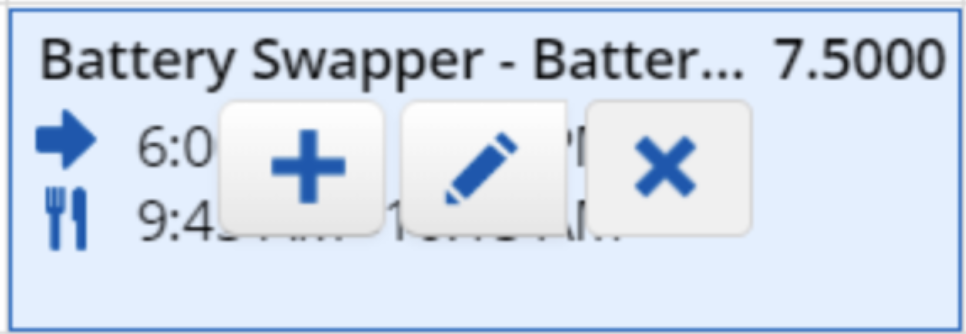
To add (+), edit (pencil), or delete (x) a scheduled shift hover over the scheduled shift and make the appropriate selection. Close out the details and changes will be reflected on the schedule.
Copy or Move a Shift
You can copy a shift to different days or to a different employee who is qualified to work that shift.
To copy shifts:
- Option 1: Click on the shift you want to copy. If you would like to copy multiple days, hold down the mouse clicker and in one continuous motion highlight the shifts you want to copy and release the mouse clicker.
- Option 2: Click on the shift you want to copy. If you would like to copy multiple days, press ctrl/command (Mac) and click on the shifts you would like to copy.
Click the mouse button and drag the shift/s to where you would like to copy them to. Hover over schedule cell and release them over the copy button. 
To move shifts:
Perform either method of selecting shifts. Click the mouse button and drag the shift/s to where you would like to copy them to. Hover over schedule cell and release them over the move button.

This action will move the shifts to the new schedule cell.
Be sure to save your schedule before you navigate from the page.
Copy Schedules
Instead of creating a new schedule from scratch, you can copy your location’s schedules from a previous week on the Schedules section
- Click the Generate button
- Click Copy Week from the drop-down menu and select the weeks/day of the week you want to copy the schedule from.
- Select the details you would like to copy from the previous schedule.
- Click Copy
This will copy schedules for everyone currently in your view. To copy only shifts for one employee or group of employees, use the Filter option
Note: If you schedule a PT employee for more than 30 hours or FT employee for more than 40 hours, you will recieve a warning, but you will be able to save the schedule
Save and Approve the Schedule
Click the Save button. Saved schedules are still work in progress schedules. They are not visible to your employees until they have been posted by someone with HR/Admin access.
Verify your Schedule
Dayforce marks shifts which have a problem with the following levels of severity.
 Critical
Critical problems are mistakes on your location’s schedule, which will prevent you from saving the schedule. You must resolve these error(s) before you can finish the scheduling process.
Scheduling the same employee to work overlapping shifts is an example of a schedule problem.

Warning
Warnings represent situations on your schedule you should acknowledge but can choose to leave in your locations schedule. The schedule records an issue whenever shifts violate one aspect of your location’s scheduling policy. Unlike critical problems, shifts with issues can still be staffed, and allows you to save and post schedules.
Browse Problems
To see if any shift violations occurred, as well as review any other problems or issues, click the Problems button.
In the Problems tab, you can see if there are any problems, warnings,or informational notes. By default, all three types are selected and displayed in the list.